6. Edit Data
In Workbench you can view and change data in a table, allowing you to update values, correct mistakes, and more. This part walks you through how to edit table data in Workbench.
Before you continue
Make sure you've already inserted data into your table, and your connection is opened. Refer to Inserting data into tables.
You should be familiar with the contents of the previous sections so you can follow this part easily!
Steps
Changing values
-
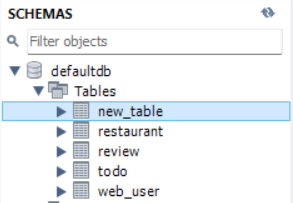
Locate the Schemas panel on the left side of the Workbench.
-
Expand your schema and Tables section to locate the table you want to view or edit.
-
Right-click that table.
-
Left-click the Select Rows option.
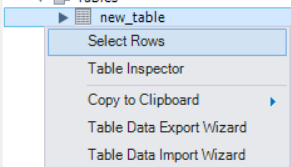
The Result Grid from the last part should show up again.

-
Left-click on the cell you want to edit.

-
Type in the new value you want.

-
Apply the changes you made to the cell the same way you did in the previous parts.
-
Refresh the Result Grid, your table should be edited now.
Deleting data
-
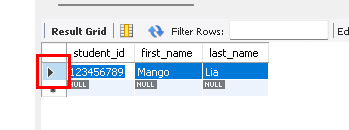
Left-click on the button highlighted in red beside the row you want to delete.
-
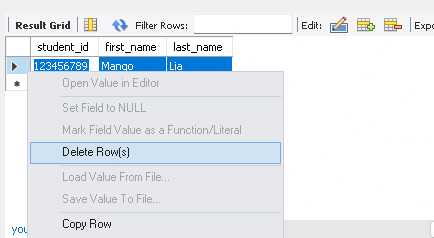
Right-click the same button to open the menu options for that row.
-
Left-click the Delete Row(s) option in the options menu.
Warning
Be careful when editing values in a Primary Key column. Primary Keys must remain unique, so changing them may cause errors or affect how rows are identified.
-
Apply the changes the same way you did in the previous parts.
-
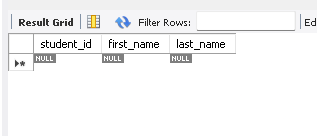
Left-click the Refresh button to refresh the Result Grid.
Success
The row you deleted should be gone now.
Conclusion
You just edited table data in Workbench, you can update existing values and remove unwanted rows. This concludes our beginner's guide, thanks for reading to the end 👍