5. Run queries
In Workbench, queries are written and run in the SQL Editor to retrieve or modify data. This part will explain the difference between queries and SQL scripts, and then walk you through how to write and run a query in Workbench.
Before you continue
Make sure you've already inserted data into your table, and your connection is opened. Refer to Inserting data into tables.
You should be familiar with the contents of the previous sections so you can follow this part easily!
Queries vs SQL Scripts
Queries are statements that ask your database for information. Example of a query:
SELECT * FROM customers WHERE city = 'Toronto';
This query, or sometimes called an SQL request, gets all the customers from Toronto. A query is one SQL request, but an SQL script is a large group of SQL that can contain one or more queries (SQL requests).
Steps to run queries
-
Locate the Schemas panel on the left side of the Workbench.
-
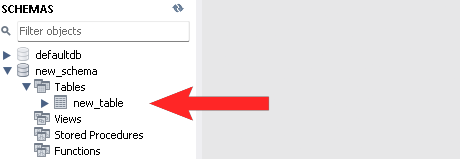
Expand your Schema and Tables section so you can confirm the table you created exists.
-
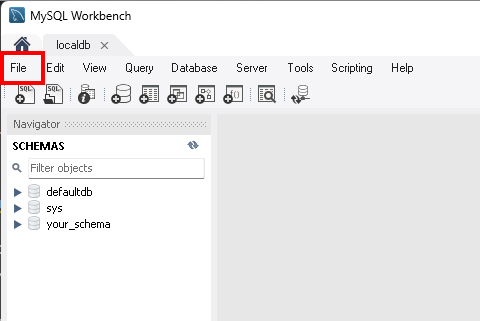
Left-click the File button on the top-left corner of Workbench.
-
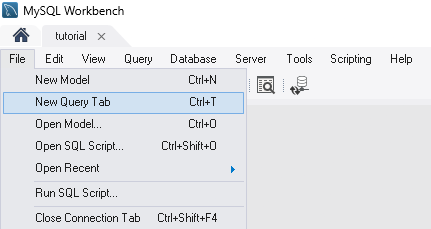
Left-click New Query Tab to create a new query tab in the SQL Editor.
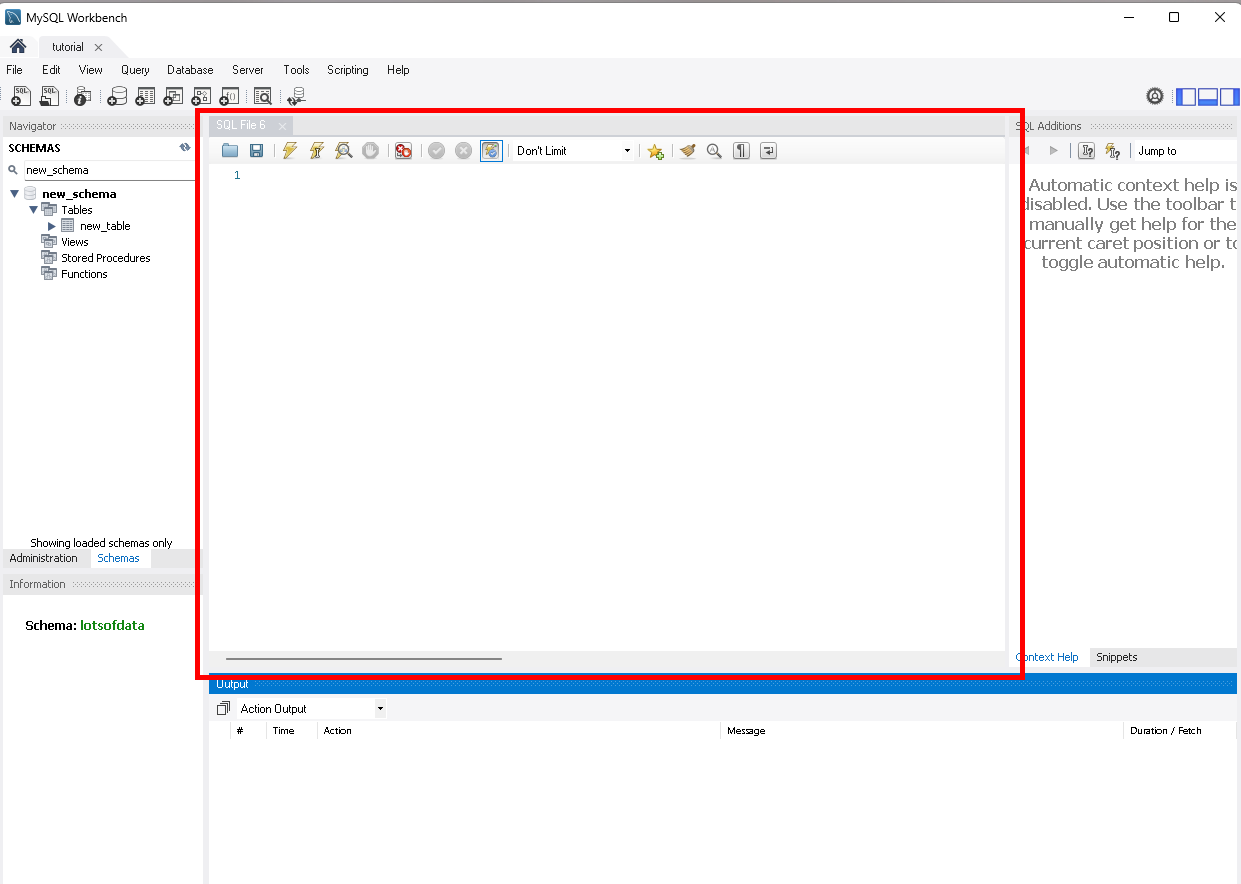
The area highlighted in red is your SQL Editor. This is where you write and run queries:
Note
You can also press Ctrl + T at the same time on your keyboard to create a tab.
-
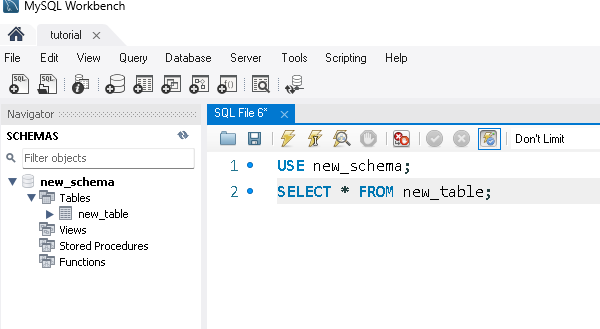
Type this into the SQL Editor:
USE name_of_your_schema;
SELECT * FROM name_of_your_table;
Replace the placeholder names with the actual names of your schema and table.
Note
This part uses
USEandSELECTqueries because they are simple for beginners. -
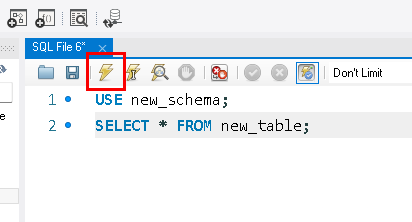
Left-click the Execute button (lightning bolt icon) to run the SQL script.
Success
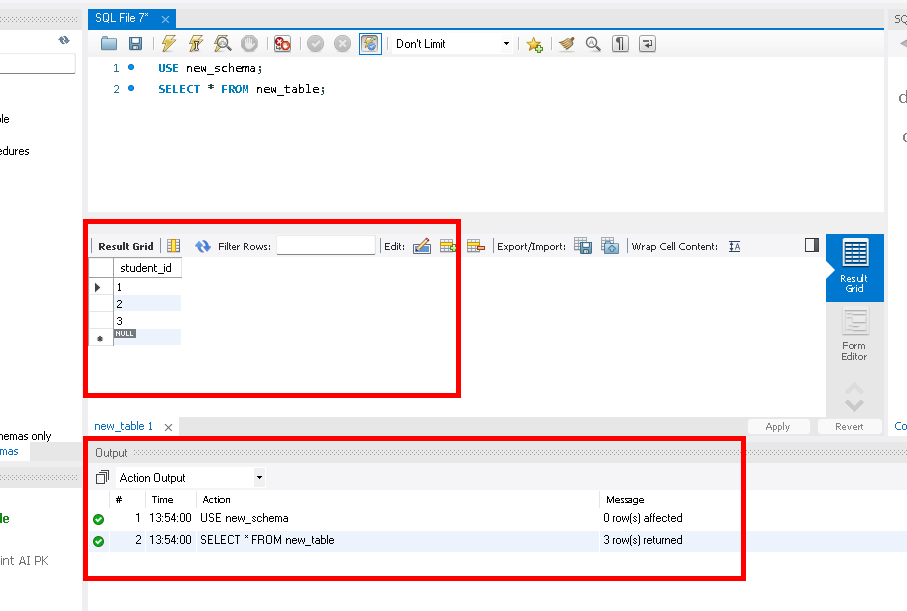
If the SQL script runs successfully, you'll see the data from your table in the Result Grid, as well as an Output showing the query that was executed.
Next Steps
The next step is to use Workbench to edit the data in your table.