4. Insert Data
In MySQL Workbench, data is stored inside tables as rows. To add new information, users insert data into the columns of a table. This section explains how to insert data using the MySQL Workbench graphical interface.
Before you continue
Make sure you've already created a table, and your connection is opened. Refer to Create a table.
You should be familiar with the contents of the previous sections so you can follow this part easily!
Steps
-
Locate the Schemas panel on the left side of the Workbench.
-
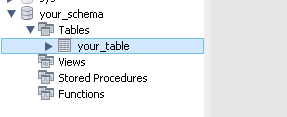
Expand your schema and Tables section to locate the table you want to insert data into.
-
Right-click that table.
-
Left-click the Select Rows option.
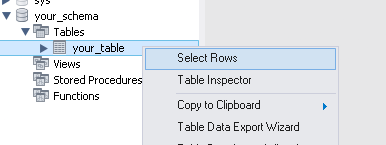
Success
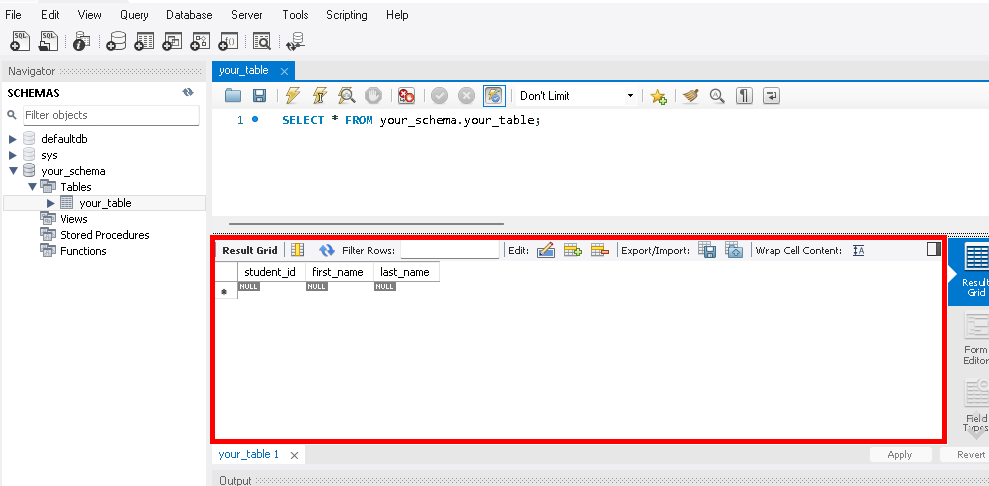
You should see the Result Grid appear after clicking Select Rows.
-
Left-click on an empty cell to be able to type in it.

-
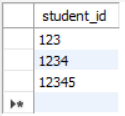
Type values into each column.
-
You can type directly into each cell.
-
Follow the datatype requirements (e.g. numbers for INT, text for VARCHAR).
-
-
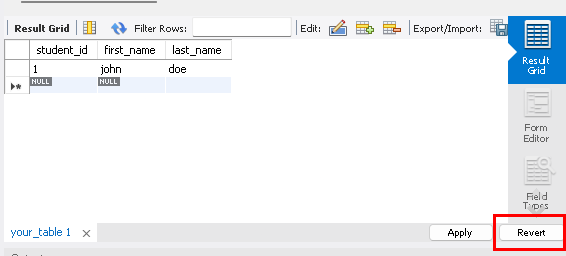
Left-click the Apply button in the bottom right corner.
Note
If you accidentally entered incorrect data, you can left-click the Revert button beside Apply to erase what you just put.
-
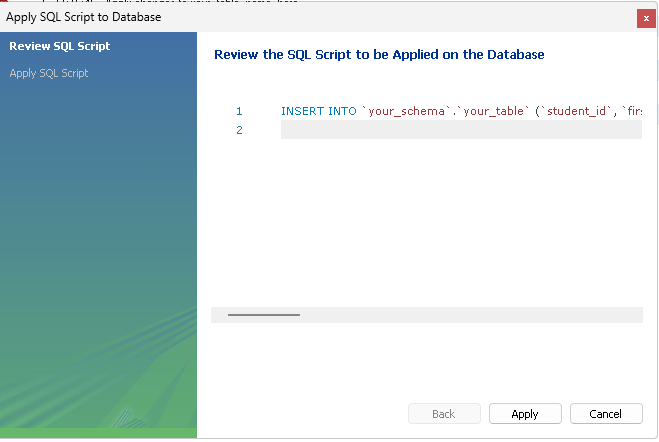
Read the confirmation window showing the SQL command that will be executed.
-
Left-click the Apply button.
Success
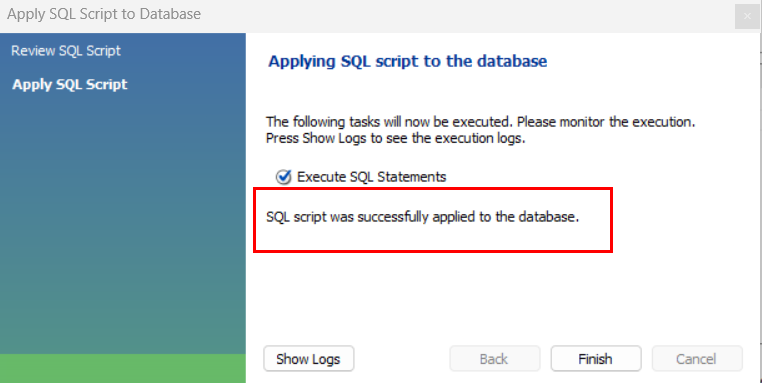
If the SQL script runs without issue, you'll see this:
SQL script is giving an error?
-
Make sure your required columns (marked with NN for Not Null) are filled in before clicking the Apply button, or the insert will fail.
-
If you used the wrong datatype in a column, it will fail. For example, typing text like
hellointo anINTcolumn that requires an integer like1,2,3will fail.
-
-
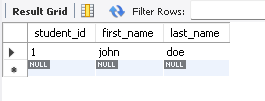
Left-click the Refresh button if you do not see changes in the Result Grid.

Success
You successfully inserted data into your table. Good work 👍
Next Steps
Now your table contains saved data so in the next part, we'll walk through how to run queries.