3. Create a Table
This section walks you through how to create a table using Workbench. Tables are essential for organizing and structuring data so it can be stored, queried, and analyzed. This section walks you through how to create a table using Workbench.
Before you continue
Make sure you've already created a schema, and your connection is opened. Refer to Create a schema.
You should be familiar with the contents of the previous sections so you can follow this part easily!
Steps
-
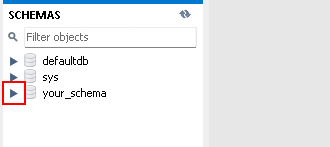
Locate the Schemas panel on the left side of the Workbench.
-
Left-click the button highlighted in red to expand your schema.
-
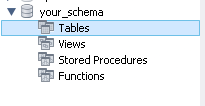
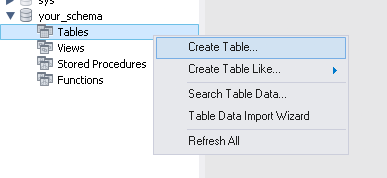
Right-click the Tables section under your schema.
-
Left-click the Create Table option.
-
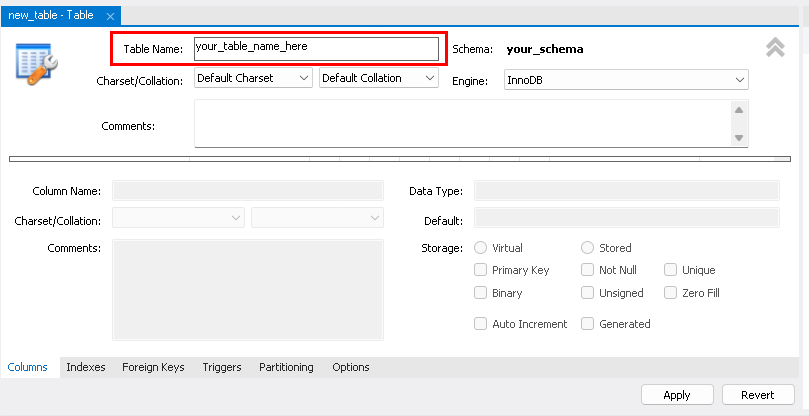
Type a name for your table in the name box.
-
Enter each column’s details in the row of the Columns editing section.
Example:
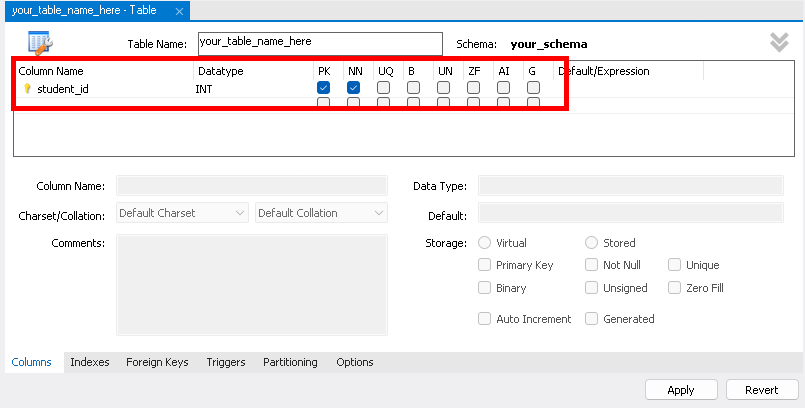
For each column:
- Type a name in Column Name. We called it
student_idbut you can choose your own name. - Select a value in Datatype. For this tutorial, please select the
INTdatatype, but you can choose other datatypes later. - Left-click to check any options you want to apply, like PK for primary key, NN for not null, or AI for auto increment.
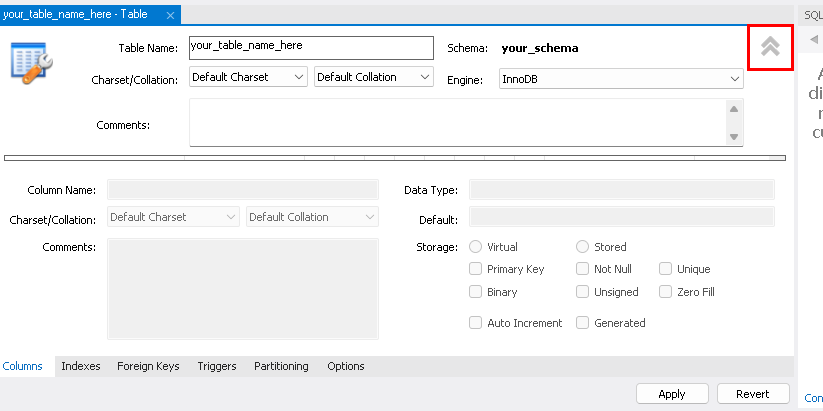
Can't find the Columns editing section?
For some people, you need to press a button to toggle the Columns editing section. Left-click the button highlighted in red to open it:
- Type a name in Column Name. We called it
-
Left-click the Apply button only when you are finished naming the table, and entering the column details.
-
Read the confirmation window showing the SQL command that will be executed.
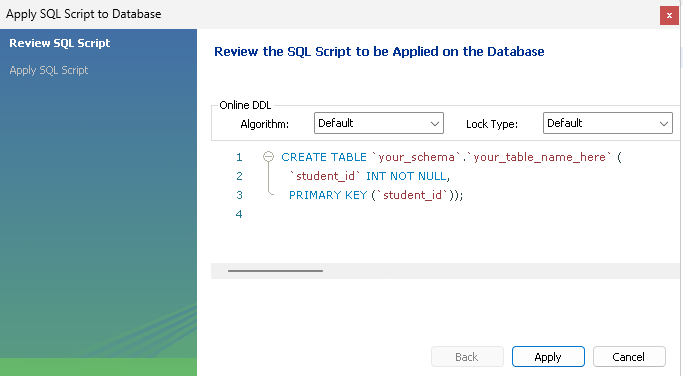
Note
The code/script that you see in the confirmation window may be different depending on what data you put, that's okay.
-
Left-click the Apply button.
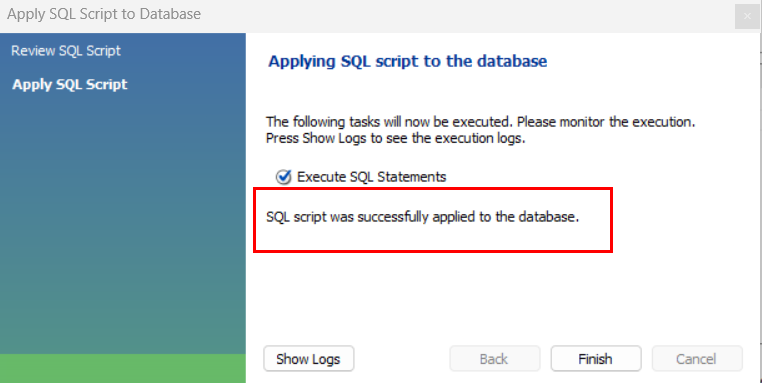
Success
If the SQL script runs correctly, you'll see this:
The SQL script got an error?
Double-check the details you entered on the table creation window to make sure you have no typos.
-
Left-click the Finish button.
-
Left-click the button highlighted in red to expand the Tables section and confirm your table exists.
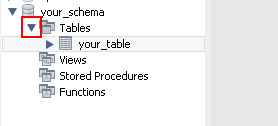
Success
You successfully created a new table in your schema.
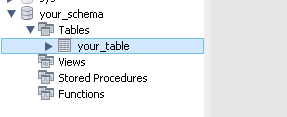
Table doesn't appear in the Schemas panel?
You have to refresh the panel, left-click the Refresh button.
Note
It's recommended to create a Primary Key (PK) for your table, using an
INTcolumn with Auto Increment (AI). This ensures each row has a unique identifier.
Next Steps
You've created a table in Workbench. Next, we're gonna insert data into the table.