2. Create a Schema
A schema in Workbench represents a database that stores tables and data in those tables. Schemas are very important, without them, you don't have a place to put data. This section walks you through how to create a new schema.
Before you continue
Make sure you've created a connection and it's opened right now. Refer to Create a connection.
Steps
-
Locate the Schemas panel on the left side of the Workbench.
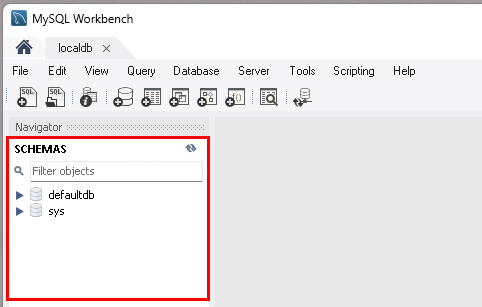
-
Left-click the Create Schema button highlighted in red.
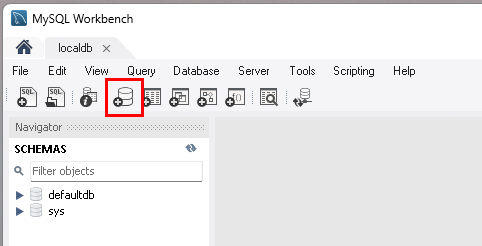
-
Type a name for your schema in the Name box.
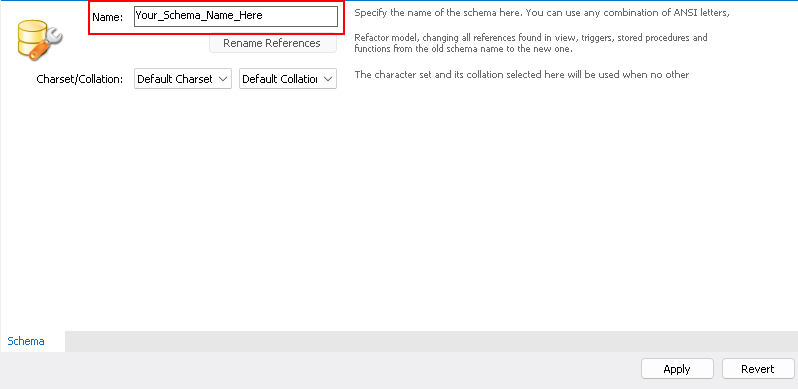
-
Left-click the Apply button.
-
Read the confirmation window showing the SQL command that will be executed.
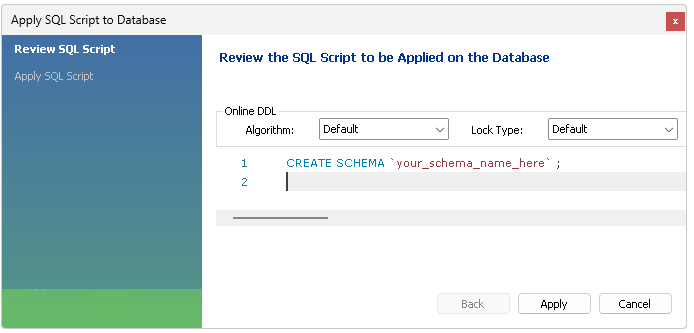
Do you see the line of code that says
CREATE SCHEMA? That is the SQL script that was automatically generated by Workbench when you clicked Apply. This is important because changes to your database won't happen until that code runs. -
Left-click the Apply button to run the SQL script's code.
Success
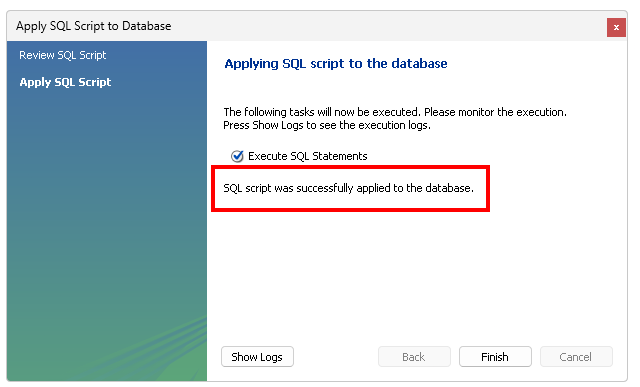
If the SQL script runs correctly, you'll see this:
-
Left-click the Finish button.
-
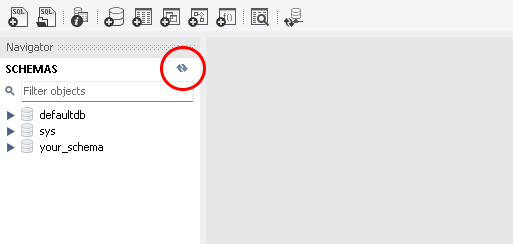
Left-click the Refresh button circled in red if you don't see your new schema in the Schemas panel.
Success
You just created a schema, you can view it in the Schemas panel. Good job 👏
Next Steps
Now that you have a schema, we're gonna create a table inside it.