1. Create a Connection
Before creating schemas, tables, or queries in Workbench, you need to connect to an SQL Server with a connection. This part shows how to create a new connection in Workbench.
Steps
-
Open MySQL Workbench.
-
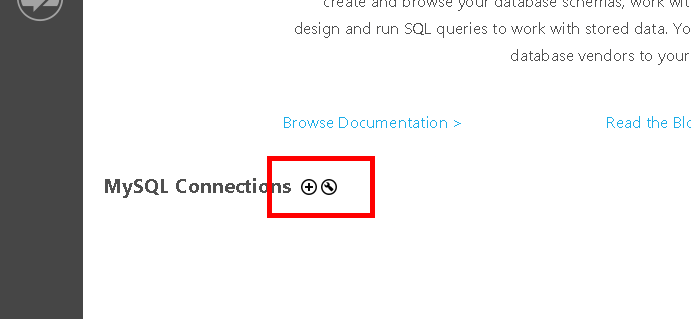
Left-click the + icon next to MySQL Connections on the home screen.
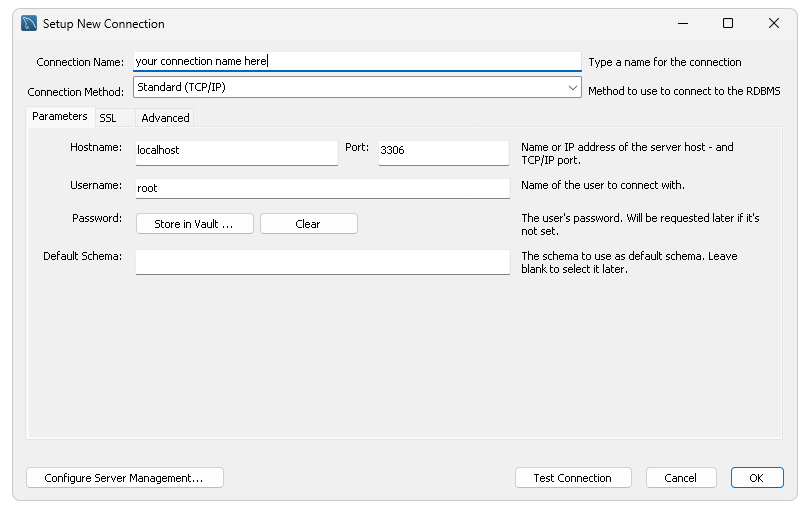
A window titled "Setup New Connection" should appear.
-
Type the following details into the New Connection window:
- A name (of your choosing) in Connection Name
localhostin Hostname3306in Portrootin Username
Incorrect username?
If
rootdoesn't work for username, check the username you created when you installed MySQL Server, and use that instead ofroot. The username is usuallyrootby default unless you set a different username during setup. -
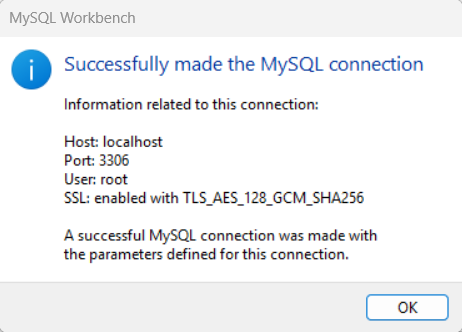
Left-click the Test Connection button to verify the connection is working. If prompted, enter your MySQL password.
Success
If the connection settings are correct, you'll see a successful connection message. Good job 👍
Test connection failed?
Double-check your password, hostname, and port number (
3306) to make sure you have no typos. Most connection issues are caused by incorrect login details. -
Left-click OK to save the connection.
Warning
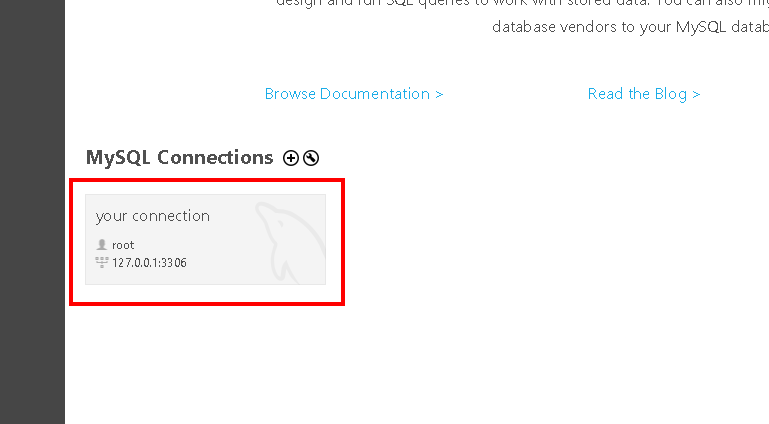
Before you continue to the next part, you should left-click on your connection (the box highlighted in red) to open it.
Next Steps
You've created a connection in Workbench that you can use to access your MySQL server, next, we're gonna use this connection to create a schema.